
Welcome to part 12 of the VCF-9.1 home lab series. The previous post in this series discussed configuring provider management in VCFA. This post will demonstrate deploying and configuring VCF Operations for logs.
If you are not following along, I encourage you to read the earlier parts of this series from the links below:
3: VCF 9.1 Pre-Deployment Planning
4: Setting up VCF 9.1 Offline Depot
5: VCF 9.1 Deploy Management Domain
6: Configure Management Domain Network Connectivity
8: Enable Avi on Workload Domain
9: Deploy Supervisor in Workload Domain
11: VCFA Provider Management Configuration
In VCF 9.1, log management has been further unified into VCF Operations. Rather than deploying it as a standalone appliance (VCF 9.0 and earlier), it now runs as a service on the VCF Services Runtime Cluster—the same Kubernetes-based platform that also hosts Fleet Management and other management components. The logs interface is now fully surfaced inside the VCF Operations console instead of a separate UI, so troubleshooting no longer requires switching between products.
VCF Operations for Log can collect logs from all VCF components, such as vCenter, ESX, NSX, vSAN, VCF Automation, VCF Operations, VCF Identity Broker, and VCF Operations HCX
Log Management is not included in day-0 (VCF fleet) deployment and is enabled on the VCF infrastructure as a day-2 component. Deploying or scaling it will resize the underlying VCF Services runtime cluster worker nodes automatically. An additional worker node with 12 vCPUs / 24 GB RAM is added to the existing cluster when VCF log is deployed for the first time.
Note: If you are upgrading from VCF 5.x or 9.0, there is no in-place upgrade available. You must deploy VCF logs in the 9.1 environment and then migrate the last 90 days of data from the old appliance. Post data migration, the old appliances can be deleted.
Prerequisites
- A DNS-registered FQDN (forward and reverse lookup) reserved for the Log Management instance.
- Sufficient capacity in the VCF Services Runtime: Deploying Log Management can trigger an automatic resize of the K8s cluster; plan for the extra compute ahead of time.
- Decide on sizing up front: The deployment size determines the compute and storage resources allocated to each node. Refer to the Broadcom configmax portal for guidance.
Deployment
Log in to VCF Operations UI and navigate to Build > Lifecycle > VCF Management > Components. Click Add Component and choose Log Management.

In the wizard:
- Select the version and enter the FQDN for the instance.
- Choose a size (standard/small for labs and small environments; large/HA for production).
- Check the box to acknowledge service interruptions and click Next.
Note: If you are upgrading from VCF 5.x/9.0, you can select “import configuration from an earlier appliance” and initiate log transfer from the old appliance to this new instance.

Review the summary and click Finish to start the deployment.

Click View Details to track the deployment tasks.

The task view lists all the sub-tasks that are executed in the backend for the log management deployment.

It takes 30-45 minutes for a successful deployment.

(Optional) If you want to see the old Aria LCM style workflow for the deployment, navigate to Operate > Administration > Control Panel and click Management Tasks.

Locate the Configure Component task and click the Completed button.
Note: This might take 5-10 minutes to show up under management tasks.

The step-by-step workflow is shown under the graphs tab.

Enable Log Collection for Infrastructure Endpoints
Not all VCF components send logs automatically after Log Management is deployed. You must explicitly activate collection per workload domain and per component.
Before log collection can be enabled, verify the Accounts integration by navigating to Operate > Administration > Integrations > Accounts. Ensure that the infrastructure endpoints are registered here.
Note: If any integration is missing, the account can be added by clicking the Add button and selecting the account type.

To enable data collection on the VCF instance, expand VMware Cloud Foundation, locate your VCF instance, click the three-dot menu, and select Start Collection.

Validate that the data collection has started.

To enable log collection for an individual component, click the component and select “Activate Log Collection” and save.

Repeat the process for the other accounts.

Click the Collection status tab and expand VCF Operations Collector to see all endpoint adapters are streaming data collection to VCF OPS.

To view the logs, navigate to the Operate > Logs page. You will see the classic Aria Operations for Log screen.

Audit logs can be viewed by navigating to Protect > Audit Records and selecting the time frame.

For larger environments, deploy a dedicated cloud proxy per domain rather than relying solely on the management-domain collector to keep collection local to each domain and reduce cross-domain traffic.
Scaling Log Management
As ingestion grows, you have two scaling paths:
1: Increase storage on existing nodes by navigating to Build > Lifecycle > VCF Management > Log Management > Actions > Increase Storage Size
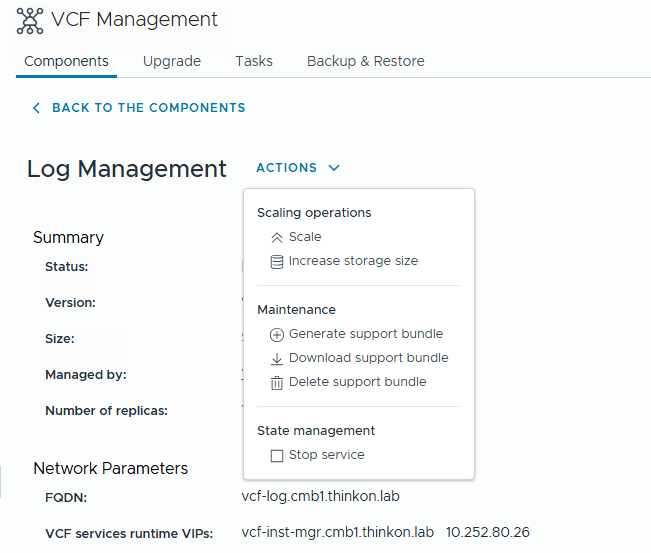
2: Scale out to additional replicas. Only medium or large size log management can be scaled up. Small-sized deployment scaling is not possible through the UI; however, it is doable via API.
And that’s it for this post.
In the next posts of this series, I will cover more topics on VCF. Stay tuned!!!
I hope you enjoyed reading this post. Feel free to share this on social media if it is worth sharing.