What’s New With vCloud Availability 4.0-SLA Profiles

With the latest release of vCloud Availability, several notable features have been added. In this post, I will discuss one such feature, known as “SLA Profiles.” 

What are SLA profiles?

This new feature brings preconfigured protection profiles to be consumed as they are.

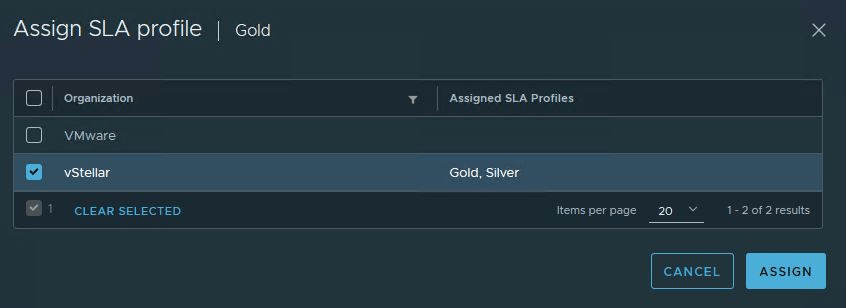
These profiles can be assigned to all/specific tenants and are available for tenants when creating new protection/migration for virtual machines.

Each SLA profile has the following attributes:

  • Target recovery point objective (RPO).
  • Retention policy for the point-in-time instances (snapshots).
  • Whether the quiescing is enabled.
  • Whether the compression is enabled.
  • Timeslot to delay the initial synchronization.
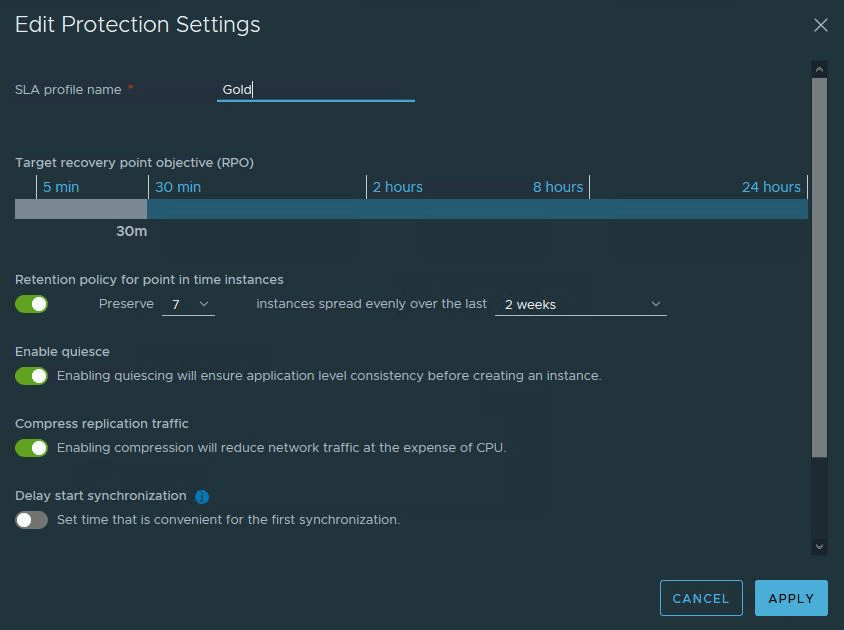
There are 3 SLA profiles that you will get out of the box, i.e., gold, silver & bronze.
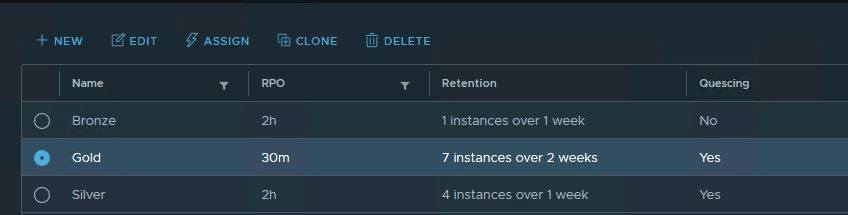
These profiles can be directly attached to specific organizations by clicking on the Assign button.
Profile Management

SLA profiles will be managed by the service provider. A provider can then set limits for some of the SLA attributes in a given profile and can use it in the form of a policy and assign those policies to tenants so that every tenant’s protection fits within the policy limits.Read the rest

What’s New With vCloud Availability 4.0-Traffic Monitoring

In my last post of the “What’s New in vCAV 4.0” series, I discussed SLA Profiles. In this post, I will talk about another cool feature that tenants/providers are going to get with 4.0.

vCAV 4.0 can count the traffic data transferred by each virtual machine that is replicating to the cloud and aggregate the traffic volume information per organization. The service provider can monitor the traffic for every replication bidirectionally and per organization individually.

How Does Traffic Monitoring Collection Work?

Below is a high-level workflow of how the traffic monitoring mechanism works behind the scenes:

1: vCAV Replication Manager Service collects the traffic information for all replications to and from cloud sites and to and from on-premises sites. The traffic information is aggregated by organization.

2: The cloud replicator service instance always collects the replication data traffic for any replication direction. If a replication was configured with the compress option, the Replicator Service counts the compressed bytes.Read the rest

Create vCAV Replication Policies via API

Few days back I wrote a post on how to create Replication policies in vCloud Availability via GUI. In this post I will walk through steps of creating the same via API.

Below are high level steps of API workflow.

1: Get Auth Token

2: Create a New Replication Policy

Response Output: Make a note of the id of the policy from the response output.Read the rest

How To Unregister vCAV 3.5 Plugin from vCenter

Recently, while working in the lab, I came across a situation where I had to remove the vCloud Availability 3.5 plugin from vCenter. To remove plugins from vCenter, vCenter MOB is used, but removing the vCAV plugin follows a different path.

In this post, I will walk through the steps of doing the same.

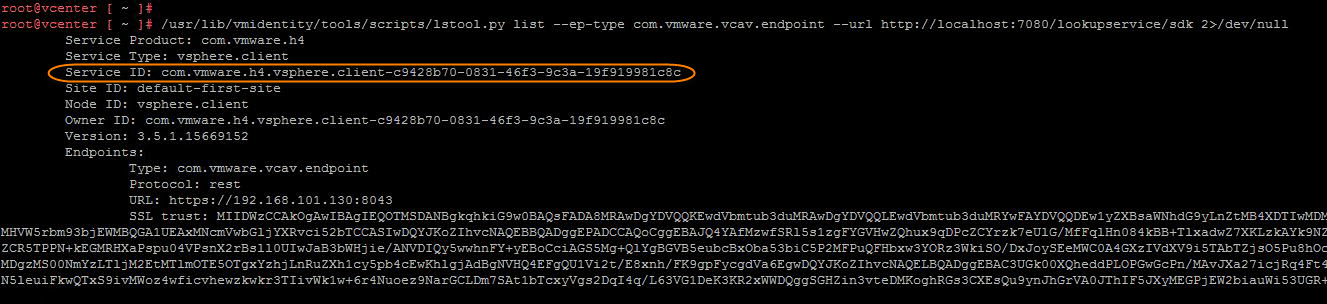
Login to your vCenter Server Appliance over SSH and execute the following commands:

1: List vCAV plugin registrations in the vCenter Server Lookup service

Make a note of the Service ID from the output

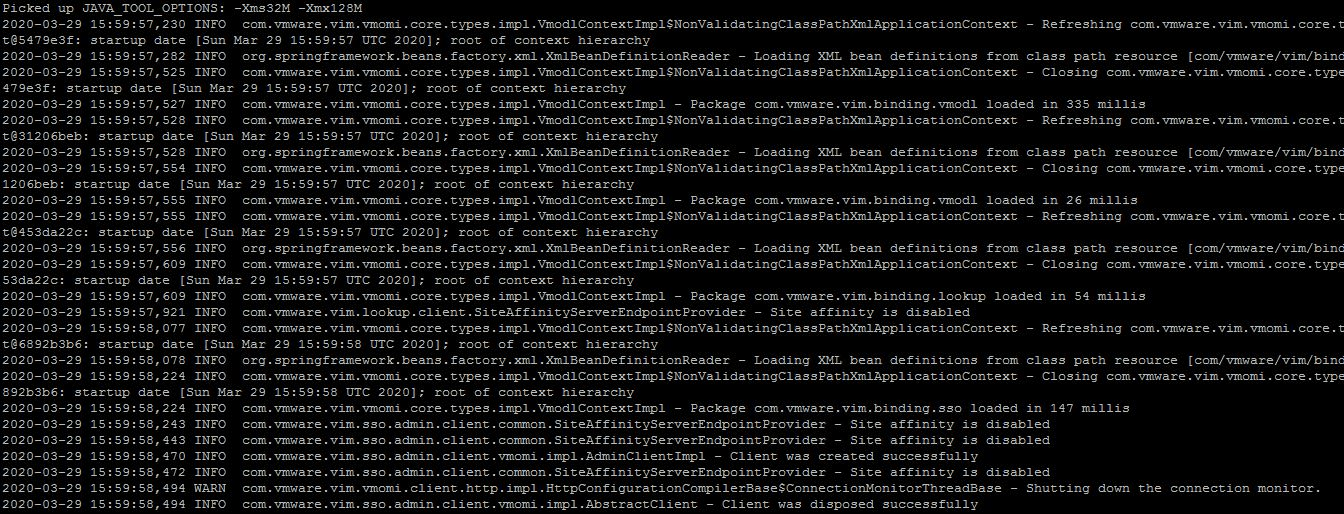
2: Unregister the vCAV plugin from the vCenter Lookup service by providing the SSO credentials and using the Service ID fetched from the previous command.

3: Re-run the command from step 1 to verify the vCAV plugin has been unregistered from the lookup service. Read the rest

Upgrading vCloud Availability From 3.0 to 3.5

In this post I will walk through steps of upgrading vCloud Availability deployment upgrade from version 3.0 to 3.5.

If you have missed earlier posts of this series, I would recommend reading them from below links:

1: vCAV 3.0-Provider Setup

2: vCAV 3.0-Replication Policies

3: vCAV 3.0-Tenant Setup

vCloud Availability upgrade can be performed via various methods (CLI & UI). These methods are very well documented Here 

Upgrading vCloud Availability in the Cloud

Before upgrading vCAV in service provider side, we need to ensure that environment is configured as per Pre-Upgrade requirement.

vCloud Availability Upgrade Sequence

For a multi site vCloud Availability deployment, upgrade the sites in the following order:

  • Upgrade all vCloud Availability appliances in the local cloud site.
  • Upgrade all vCloud Availability appliances in remote cloud sites.
  • Upgrade all vCloud Availability On-Premises Appliance nodes.

In a vCloud Availability cloud site, upgrade all the appliances in following sequence:

  • Upgrade the vCloud Availability Cloud Replication Management Appliance.
Read the rest

Configuring vCloud Availability 3.0-Part 3:Tenant Setup

In first Part of vCAV 3.0 series, we learnt about service provider side configuration and in last Post we discussed about Replication Policies in vCAV. In this post I will walk through steps of configuring on-prem environment with vCAV. 

To configure on-prem environment to work with vCAV, you need to first download the vCAV 3.0 Appliance for Tenants which is located Here

Deployment of appliance is very straight forward like any other vmware product. Below slideshow shows the deployment steps.

Once the appliance boots up, make a note of the login url.

vcav-onprem-10

Login to vCAV on-prem appliance by typing https://<vcav-fqdn>/ui/admin

You will be prompted to change root password on first login.

vcav-onprem-11

Click Run initial setup wizard. 

On first page of wizard, specify the site name. When you pair the on-prem appliance with Cloud Site, your environment will be identified using this site name.

vcav-onprem-12

Enter vCenter lookup service details and sso credentials and hit Next.Read the rest

vCloud Availability 3.0-Part 2: Replication Policies

In the last post, we learned how to perform a vCloud Availability 3.0 provider-side configuration. But before tenant-side configuration can be performed, replication policies must be created.

Replication policies are sets of rules that define and control the replication attributes on a vCD organization level. Typically, a replication policy enforces the following attributes:

  • Whether an organization can be used as a replication source.
  • Whether an organization can be used as a replication destination.
  • The minimum Recovery Point Objective (RPO) for an organization.
  • The maximum number of retained snapshots per single virtual machine replication for an organization.
  • The maximum number of virtual machine replications that can be created for an organization.

Note: A single replication policy can be assigned to multiple vCD organizations. 

Create a Replication Policy

You can edit and use the default replication policy that comes with vCAV, or you can create custom ones. 

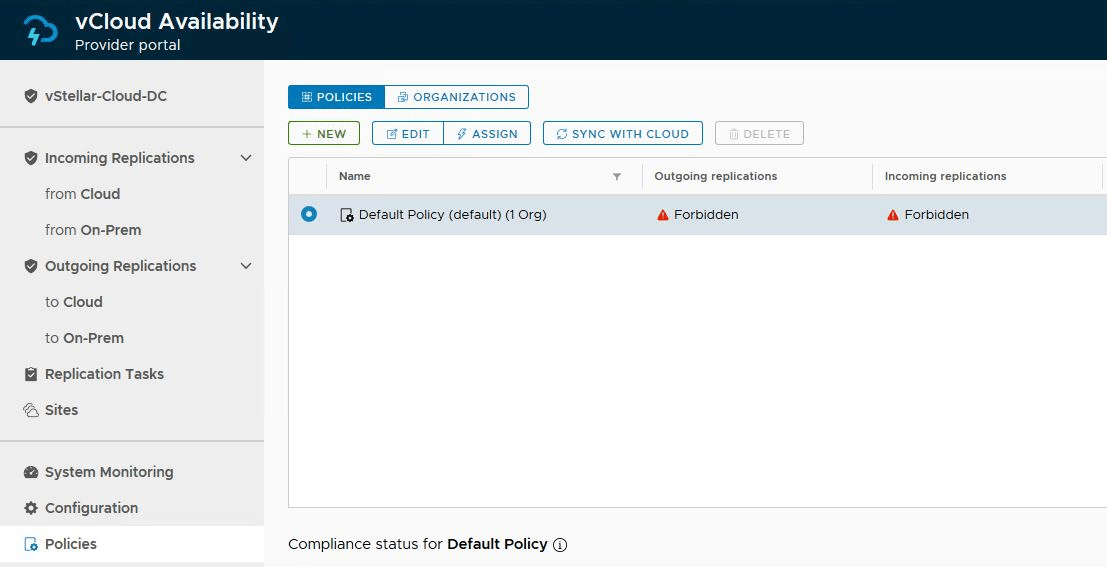
To create a new policy, login to vCloud Availability Portal (https://<vcav-fqdn>ui/admin) via root user and navigate to Home > Policies and click on New

Specify a name for the policy, select the attributes that will be part of this policy, and click the Create button.Read the rest

vCloud Availability 3.0-Part 1:Provider Setup

Recently, I got the chance to work on setting up the vCloud Availability v3.x in my lab, and it was a great learning curve. I will share my experience through a series of blog posts. 

I am not going to write an introduction post on what vCAV is and its architecture. It’s very well documented here

If you have worked on previous versions of vCAV (2.0 & 1.5), you might remember it was a pain setting up various appliances. With vCAV 3.0, installation & configuration have been simplified drastically. No more hanky-panky command-line stuff. You just need a couple of appliances for setting up the cloud and on-prem infrastructure.

In this post, I will cover the cloud (service provider) side deployment & configuration steps.

The screenshot below shows the steps of the vCAV appliance deployment. 

Note: For lab deployment/POC, we can use a combined appliance deployment topology.


Once the appliance is deployed and boots up, you will get a login URL to run the configuration workflow.Read the rest

vCloud Availability for Cloud-to-Cloud DR-Part 4: Testing DR Operations

In the last post of this series, we paired the two vCloud based cloud instances. Now it’s time to test the DR capabilities offered by vCAV-C2C.

If you are not following along with this series, then I recommend reading earlier posts of this series from the links below:

1: Introduction to vCloud Availability for Cloud-to-Cloud DR

2: vCAV-C2C-POC Deployment

3: Site Pairing

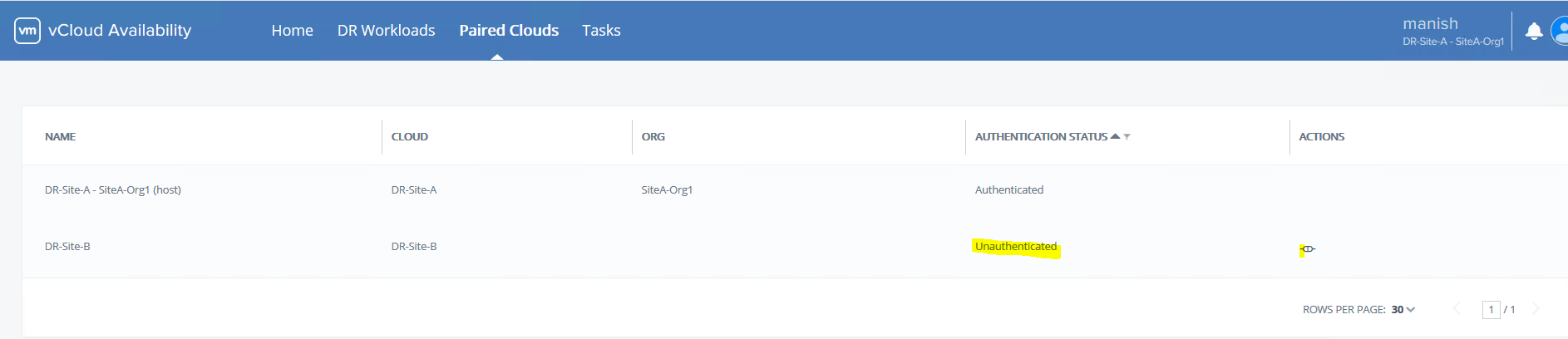
To start testing DR operations, connect to https://VCAV-FQDN:8443 and login with tenant credentials (uname@orgname) and navigate to Paired Clouds.

By default, your Site-B will show as unauthenticated. Click on the gear button to enter credentials.

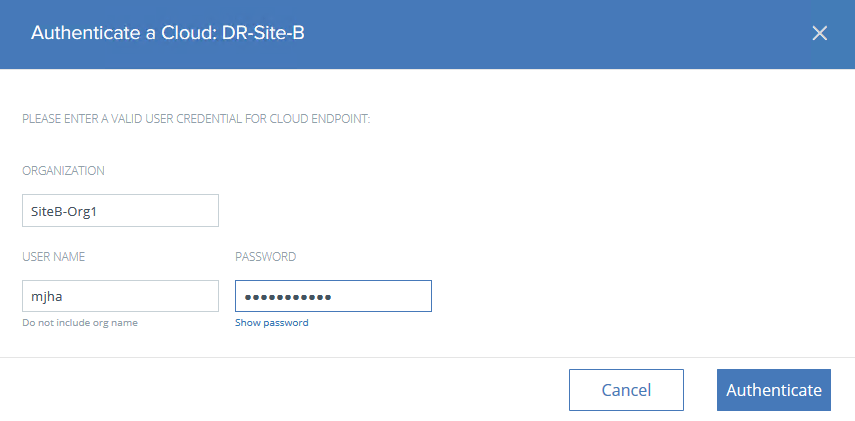
Enter the org name of Site-B and the org user credentials. Click on Authenticate.

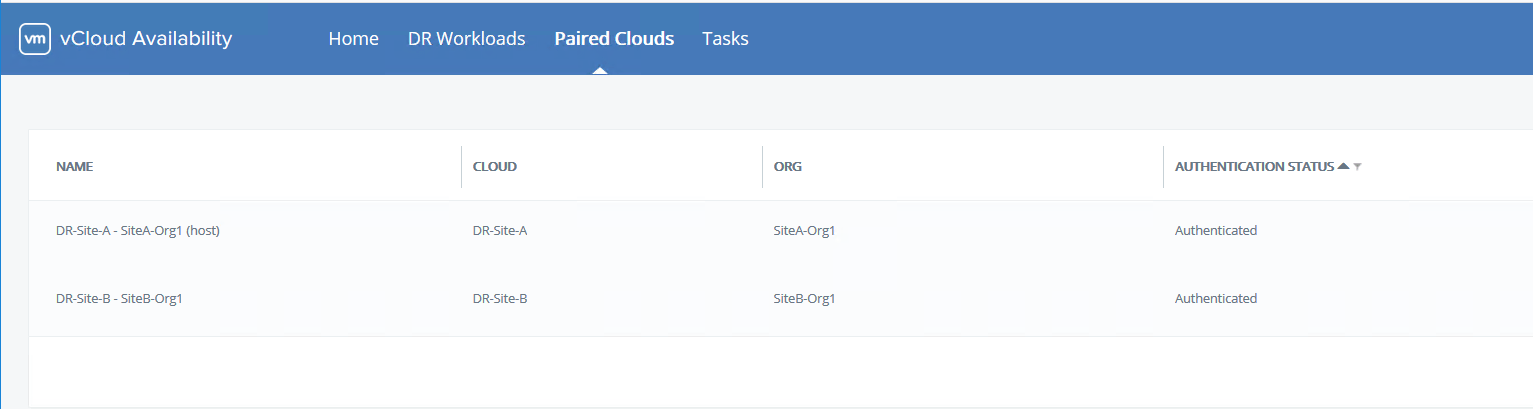
Now both sites will show as authenticated.

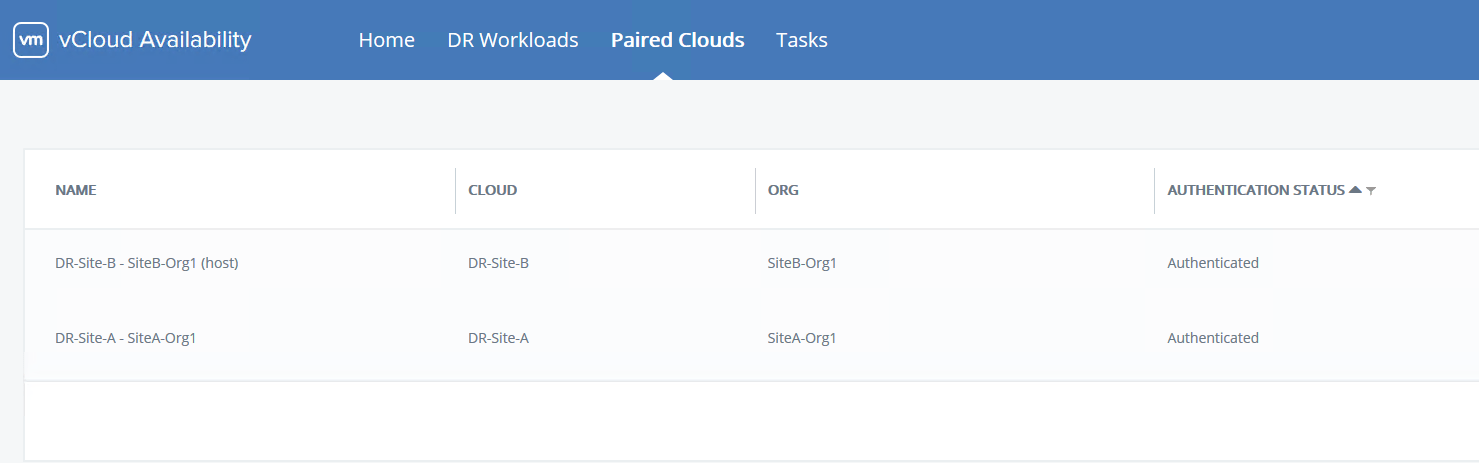
Perform the same operation by connecting to the VCAV appliance of Site-B, adding the Org/User details of Site-B, and making sure both sites are showing as authenticated.

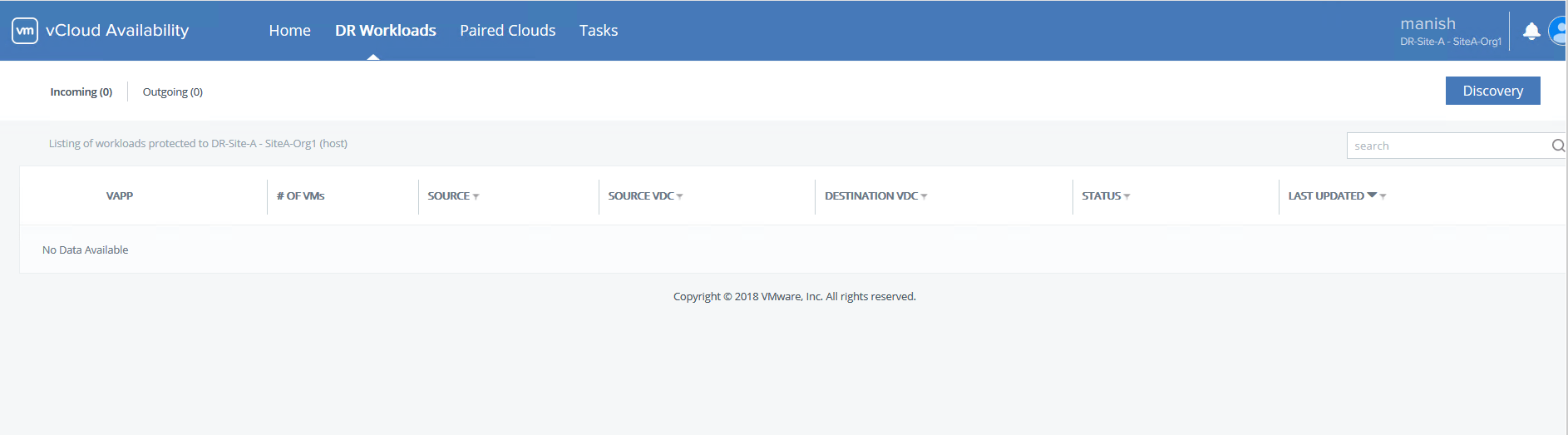
Once both sites are authenticated, navigate to the DR-Workloads tab and click on Discovery

Select the source site from where replication will be initiated.Read the rest

vCloud Availability for Cloud-to-Cloud DR-Part 3: Site Pairing

In the last post of this series, we configured the vCAV-C2C appliance for both Site A & B.

In this post, we will learn how to perform site pairing so that tenants start replicating workloads between 2 cloud instances.

If you are not following along with this series, then I recommend reading earlier posts of this series from the links below:

1: Introduction to vCloud Availability for Cloud-to-Cloud DR

2: vCAV-C2C-POC Deployment

To perform site pairing, login to the vCAV-C2C appliance of Site A by connecting to https://VCAV-FQDN:8046 and navigating to Sites > New Site, and enter the IP/FQDN of the VCAV appliance of Site B.

Accept the SSL certificate.

If your configuration is correct, you will see a successful site pairing message.

Under Sites > Show all sites, you see the pairing information.

On the diagnostics page, you can verify the health of Site A & B

And that’s it for this post.Read the rest