
In a production environment, certificate expiry is one of those problems that never announces itself until it’s too late. The self-signed certificates on various appliances quietly tick toward their expiration date, and nobody notices. Then one Monday morning, every management UI throws a browser warning, API integrations start failing, and backup jobs silently break. This is a huge operational gap for any organization.
Certificate Management in pre-VCF 9.x Era
The older VCF releases had support for integrating an external CA with the SDDC Manager, but the cert replacement was totally manual. Neither was there any way to automatically replace certificates that are about to expire, nor any alerting functionality in the UI.
Certificate Management in VCF 9.x
TLS certificates secure every management interface in a VCF deployment — vCenter, NSX Manager, SDDC Manager, ESX hosts, and the various VCF Operations components. Each one gets a certificate from a default signing CA at deployment time, and best practice has always been to replace those defaults with certificates from a trusted enterprise CA.
The problem in earlier VCF releases was operational: certificate visibility, renewal, and replacement were scattered across SDDC Manager and individual product UIs, with no unified view of what was expiring when, and no native auto-renewal. Administrators had to track expiration dates manually, and replacing a certificate often meant service restarts and a visible outage window for the management interface. With VCF 9.x, the management footprint has increased, and this has also increased the number of self-signed certificates consumed across a VCF fleet.
VCF 9.x rebuilds certificate management from the ground up to ease certificate management across the fleet. The process is now centralized in VCF Operations, and an enhanced workflow has been added for CSR generation, certificate replacement, automatic renewal of certificates, and a non-disruptive replacement workflow for the components that used to require a maintenance window.
Using the VCF Operations portal, you can perform the following certificate management tasks:
- View certificates and certificate-expiration alerts across every component.
- Configure a certificate authority (CA).
- Generate certificate signing requests (CSRs).
- Enable automatic renewal.
- Replace certificates, either through an integrated CA or by importing externally signed certificates.
VCF 9.x Fleet Management + Certificate Authority
In VCF 9.x, Fleet Management not only deploys and updates the management stack but also serves as the certificate authority for those components. If you don’t explicitly point management components to use an external CA, they continue to use fleet management’s built-in CA. Because auto-renewal is CA-aware, certificates get reissued before they expire without any admin intervention. This sits alongside two other embedded CAs:
- VMCA (VMware Certificate Authority), embedded in vCenter Server, which continues to issue and auto-renew certificates for infrastructure components and ESXi hosts.
- OpenSSL, embedded in SDDC Manager, can issue certificates for infrastructure components (not management components) and also supports auto-renewal.
External CA Integration: Microsoft ADCS
For organizations that want certificates tied to their existing enterprise PKI rather than a VMware-embedded CA, VCF 9.x supports integrating Microsoft Active Directory Certificate Services (ADCS). Once configured, VCF Operations can request and automatically renew certificates issued by Microsoft CA for both management components and infrastructure appliances.
VCF splits certificate management into two scopes:
- VCF Management: Fleet Management, VCF Operations, VCF Automation, VCF Identity Broker, and VCF Operations for Logs. This scope supports Microsoft CA only.
- VCF Instances: SDDC Manager, vCenter, NSX Manager(s), and ESXi hosts. This scope supports both Microsoft CA and OpenSSL.
This post walks through integrating Microsoft Certificate Authority (CA) with VCF 9.1 and demonstrating the certificate replacement process.
Step 1: Prepare Microsoft Certificate Authority
The steps for configuring Microsoft CA are clearly documented in the product documentation, and I am skipping the steps in this blog. The high-level steps are:
- Install Microsoft Certificate Authority Roles.
- Enable Basic Authentication in IIS.
- Create a new certificate template for VCF.
- Assign Certificate Management Privileges to the VCF Service Account.
Step 2: Configure Certificate Authority in VCF
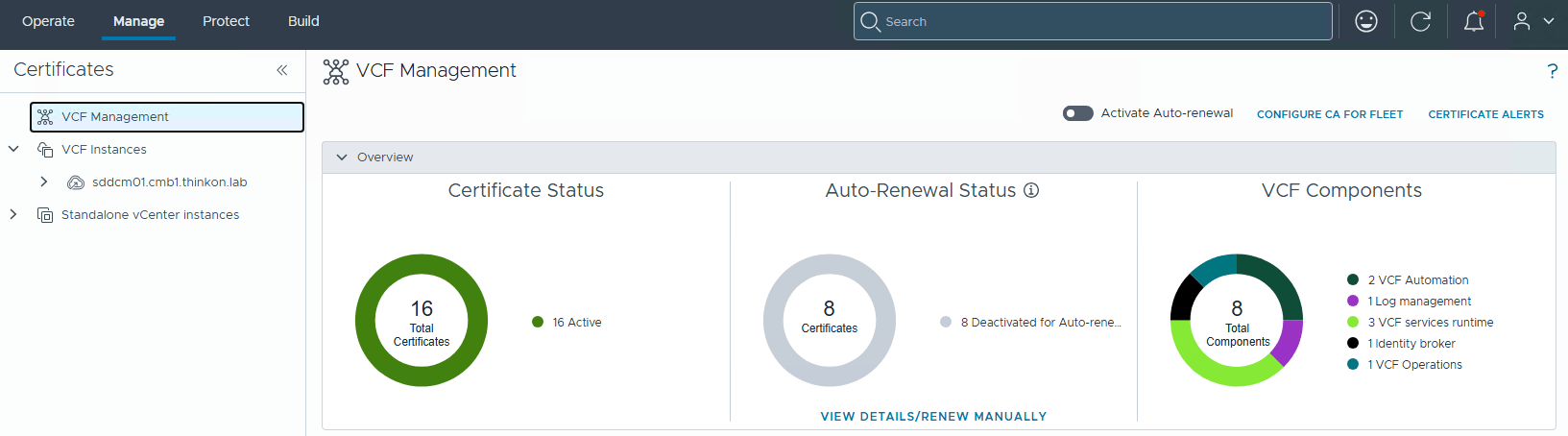
To configure Certificate Authority settings in VCF 9.1, log in to the VCF Operations portal and navigate to Manage > Fleet Management > Certificates and select VCF Management.
Click the “Configure CA for Fleet” option.
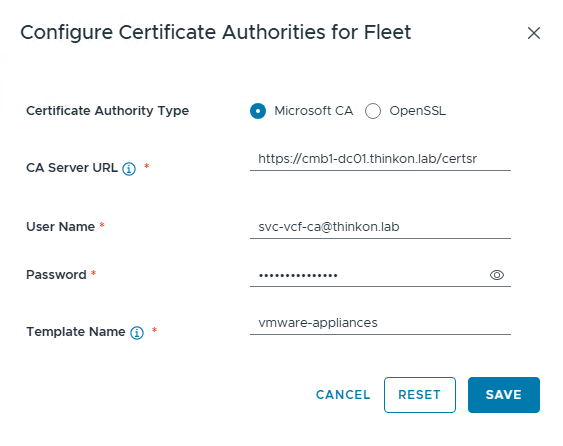
Select Microsoft CA and fill in the CA details. The template name should reflect the template that you created in step 1.
Note: The username must be in the UPN format. If you use DOMAIN\username, the wizard will throw the error “Certificate authorities update failed.” This issue is explained in KB-416470
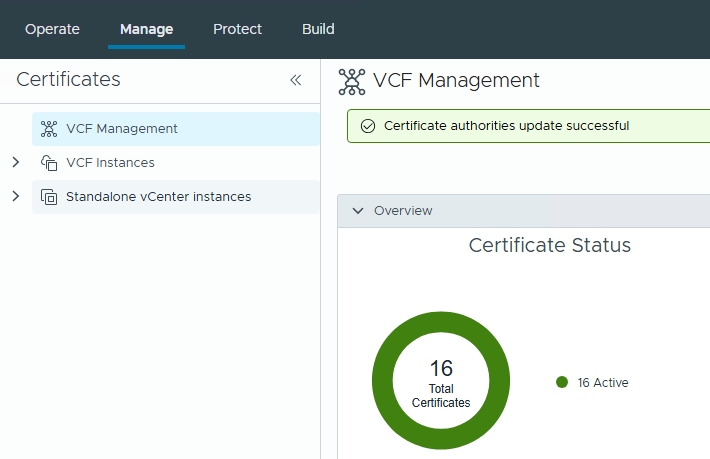
The CA is now integrated into the VCF system.
Step 3: Activate Auto Renewal
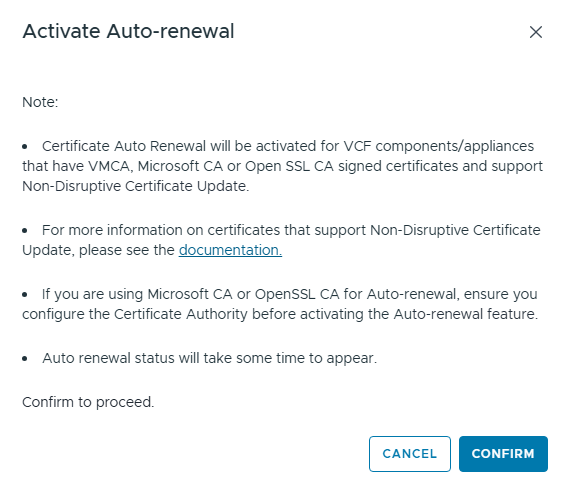
When auto-renewal is activated, the certificate renewal happens 60 days before it expires. Automatic renewal can be activated separately for VCF management components and VCF instance components. Once enabled, VCF Operations also surfaces certificate-expiration alerts, so even in scenarios where auto-renewal isn’t in play (or fails for some reason), you get a proactive warning rather than a surprise outage.
Note: If a certificate is expiring in 60 days or less, you must manually renew the certificate before activating auto-renewal.
Use the toggle button to activate auto-renewal and click the Confirm button to save the settings.
Step 4: Generate Certificate Signing Request
When generating a CSR, the public key and Subject Alternative Names (SANs) are embedded in the CSR, while the corresponding private key is retained in the VCF Operations keystore. When the CA-signed certificate is imported into VCF Operations, the certificate is validated with the stored private key.
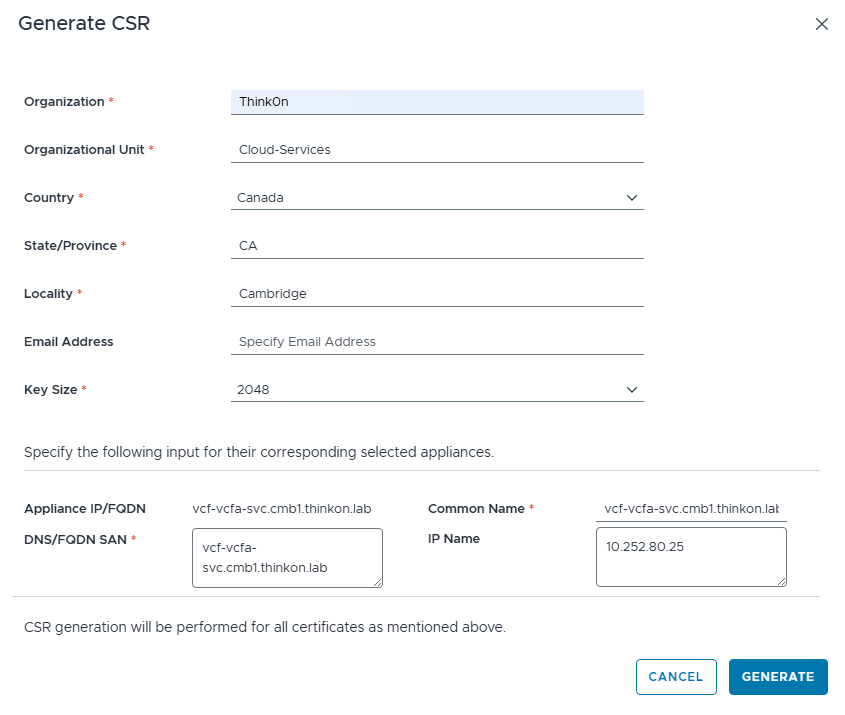
To generate a CSR for a VCF component, filter the required product from the list and select the component. From the ellipsis drop-down menu, select Generate CSRs.

Fill out the CSR details and click Save.
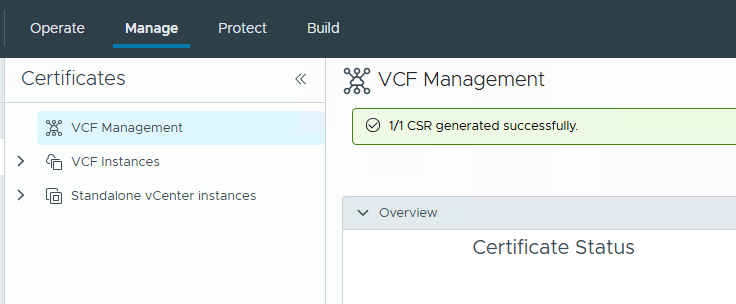
The CSR generation task is generated. Click the task details option to watch the progress.
Clicking the task details will take you to the control panel > management tasks page. Click the “in progress” button to view the task.
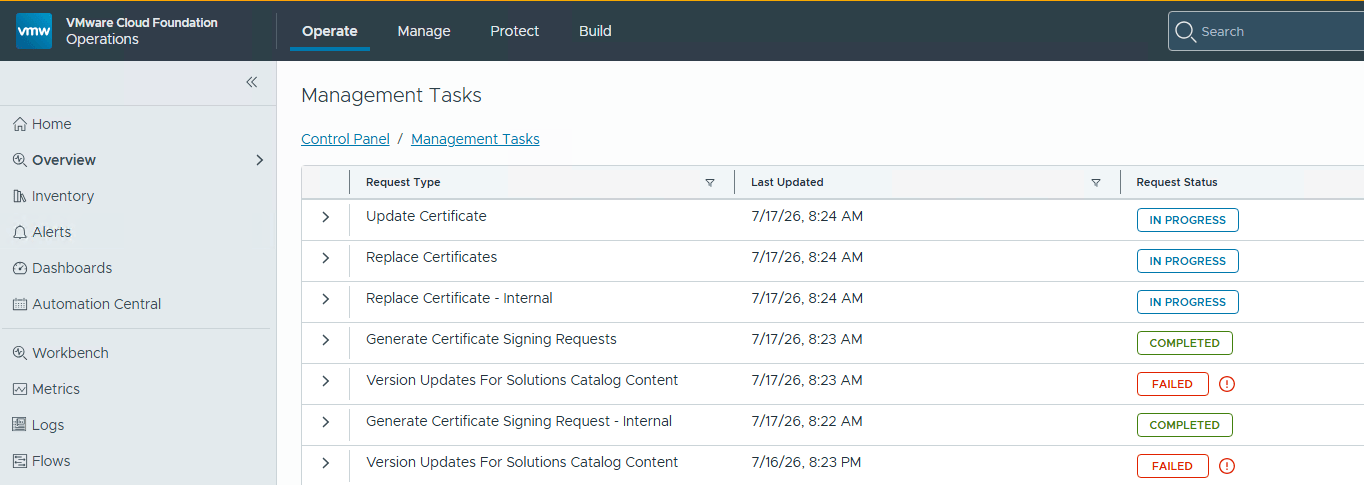
Wait for the CSR generation task to complete.

Step 5: Replace Certificate
After the CSR is generated, navigate back to the VCF management page, select the component, and click the “Replace with Configured CA Certificate” option.
Note: You can’t renew/replace an expired certificate.
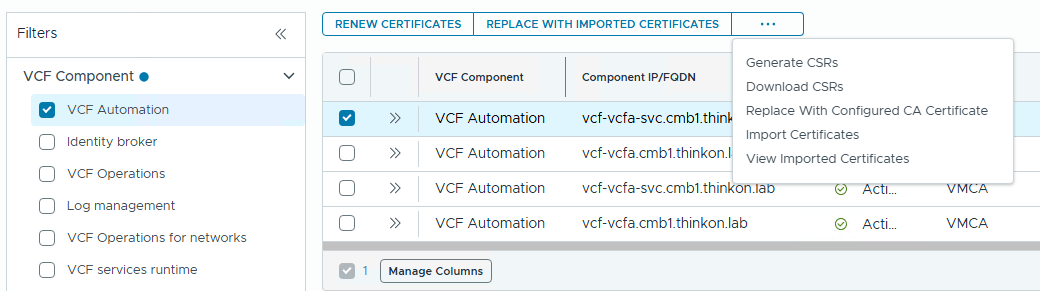
Select Microsoft CA and acknowledge the caution warning by selecting the “I understand” option and clicking Proceed.
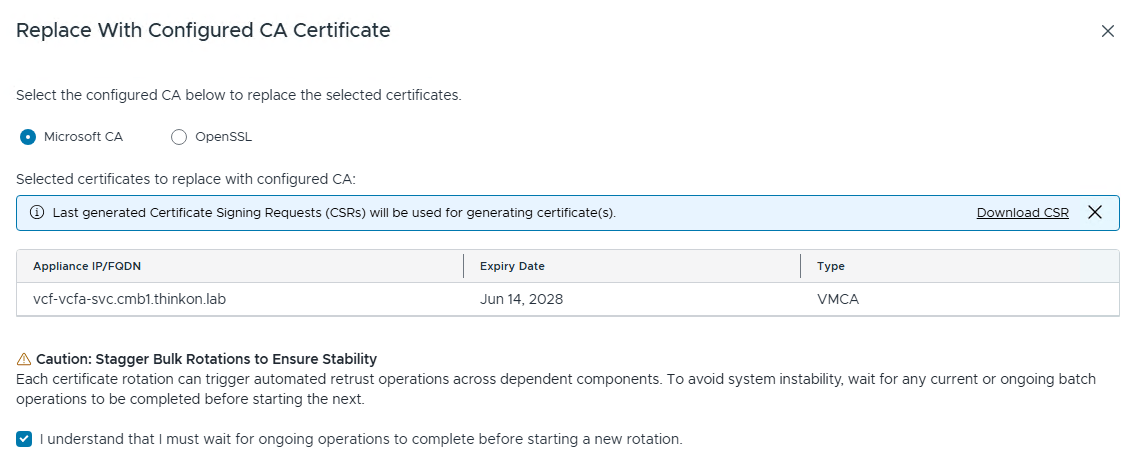
A new cert replacement task is triggered. Monitor the task progress by navigating to the management tasks view. It takes 5-10 minutes for the task to complete.
Note: The VCF Operations portal takes an extra couple of minutes to catch up with the replaced certificate, so please be patient and don’t trigger the task again if you think something’s wrong.
Repeat the process for the other VCF components.
Step 6: Validate Certificate Replacement
Launch the component’s portal and inspect the certificate. The “Issued By” field must show your internal Microsoft CA server.
Note: If you haven’t installed the CA root certificate on the system where you launched the URL, the browser will still show the certificate as untrusted.

Recommendations for Certificate Management in VCF 9.x
A few takeaways for planning a new VCF 9.x deployment or migration:
- Replace the default certificates immediately after the management domain deployment. The defaults are fine for deployment, but shouldn’t be left in place for production access.
- Decide on a CA strategy early. If you already run Microsoft ADCS, integrating it gives you a single enterprise-wide trust chain and centralized revocation. If you don’t need that, the Fleet Management CA plus auto-renewal is a low-effort option that still avoids expiry incidents.
- Turn on auto-renewal. It’s a switch, not a default option in VCF OPS. Make sure it’s actually enabled for every certificate category you care about, not just the ones you happened to configure first.
- Set up alerting in VCF Operations. They’re the safety net for anything auto-renewal doesn’t catch: expired but not renewed certs, manually issued certificates outside the auto-renewal scope, or CA integration failures. Tie critical VCF alerts to an email action or incident creation in the ticketing tool to add accountability in the process.
- Creating a custom dashboard to show the top 10 entities whose certificates are expiring in less than 30 days is an ideal step.
And that’s it for this post.
In the next posts of this series, I will cover more topics on VCF. Stay tuned!!!
I hope you enjoyed reading this post. Feel free to share this on social media if it is worth sharing.