Learning HCX-Part 9: Testing HCX Bulk Migration

In last post we tested the Cross-Cloud vMotion feature of HCX. In this post we will be testing the bulk migration feature.

If you are not following along this series, then I recommend reading earlier posts of this series from below links:

1: Introduction to HCX

2: HCX Enterprise Deployment & Configuration

3: HCX Cloud Deployment & Configuration

4: HCX Site Pairing

5: Configuring Interconnect Networks

6: Deploying Fleet Appliances

7: HCX Migration Methods

8: Testing HCX Cross Cloud Migration

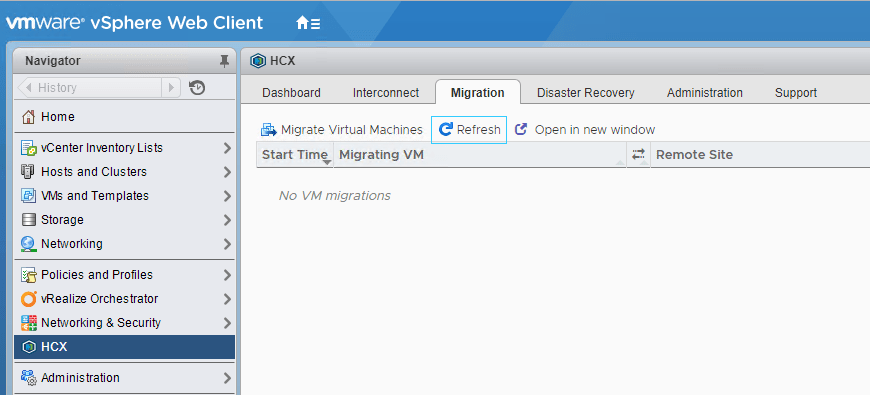
To trigger bulk migration feature, click on Migrate Virtual machines option.

bulk-migration1

Fill in the default values for container selection etc and select migration type as bulk migration.

bulk-migration2

Click on (Schedule Failover) to specify the switchover time. 

Select the start and end time.

bulk-migration3

Select the VM’s which will be migrated to cloud. You can change migration type for individual VM’s. For e.g you can choose few VM’s for bulk migration and few for vMotion or Cold migration. Read the rest

Learning HCX-Part 8: Testing HCX Cross Cloud Migration

In last post of this series we discussed about various migration methods that are available with HCX. In this post we will be testing the cross-cloud migration method in lab. 

If you are not following along this series, then I recommend reading earlier posts of this series from below links:

1: Introduction to HCX

2: HCX Enterprise Deployment & Configuration

3: HCX Cloud Deployment & Configuration

4: HCX Site Pairing

5: Configuring Interconnect Networks

6: Deploying Fleet Appliances

7: HCX Migration Methods

To configure cross-cloud migration for VM’s, login to vCenter Web Client and click on HCX plugin from home page and go to Migration tab. Click on Migrate Virtual machines.

hcx-migration1

The selections made default options are automatically applied on all VM’s selected for migration. For e.g migrated vm’s will be sitting in which compute cluster/datastore/folder etc. You can override this at per vm level as well. 

There are various other options available as well such as Upgrade virtual hardware, Upgrade VMware tools etc.Read the rest

Learning HCX-Part 7: HCX Migration Methods

In last post of this series we deployed the Cloud Gateway and the Layer 2 Concentrator virtual appliances. Next is to explore various migration methods to migrate workloads from on-prem datacenter to the cloud.

If you are not following along this series, then I recommend reading earlier posts of this series from below links:

1: Introduction to HCX

2: HCX Enterprise Deployment & Configuration

3: HCX Cloud Deployment & Configuration

4: HCX Site Pairing

5: Configuring Interconnect Networks

6: Deploying Fleet Appliances

HCX enables bidirectional virtual machine mobility. Virtual Machines can be migrated to/from an HCX-enabled target site. The migration capability for both live (Powered-on) and cold (Powered-off) virtual machines. Following are the migration methods supported by HCX:

HCX No-Downtime aka Cross-Cloud vMotion

In HCX No-Downtime method, running VM’s are migrated from on-premise to cloud datacenter with absolutely no downtime. This migration is very similar to native vSphere vMotion migration.

If you are like me, you may be thinking that vMotion is performed between 2 hosts in same cluster or across cluster, but with HCX we have on-prem and cloud and there is no connection between Esxi hosts of on-prem and Esxi hosts running in cloud, then how are we able to vMotion to cloud?Read the rest

Cleanup HCX Deployment

In this post we will learn about how to do cleanup of a HCX deployment in a right way. 

Below are the high level steps for HCX cleanup.

1: Unstretch a Layer 2 Network : Unstretching a Layer 2 network is necessary before removing the associated L2C appliance. Steps given below

  • Login to vCenter Web Client and click on HCX plugin and navigate to Interconnect > Extended Networks tab.
  • Select the network you want to remove and click the X button and hit OK to confirm.

2: Delete the L2C virtual appliance: To delete the L2C appliance, go to interconnects > HCX Components > Network Extension Service tab and select the appliance and click on Remove. 

l2c-remove.PNG

Click on Yes to confirm deletion of appliance.

l2c-remove2.PNG

You will see a message for appliance removal has started. Be patient, it takes 2-3 minutes to remove appliance from both on-prem and cloud side.

l2c-remove3.PNG

3: Delete Cloud Gateway appliance: From the HCX Components tab, select the CGW appliance and click on Remove.Read the rest

Learning HCX-Part 6: Deploying Fleet Appliances

In last post of this series we did the fleet configuration so that we can deploy the fleet appliances. In this post we will discuss about the fleet appliances and will deploy them.

If you are not following along this series, then I recommend reading earlier posts of this series from below links:

1: Introduction to HCX

2: HCX Enterprise Deployment & Configuration

3: HCX Cloud Deployment & Configuration

4: HCX Site Pairing

5: Configuring Interconnect Networks

There are 3 appliances that you can deploy in your HCX environment:

Cloud Gateway (CGW): The CGW appliance is responsible for creating encrypted tunnel between on-premise and HCX-Cloud for vMotion and Replication traffic. CGW deployment is kicked from on-prem and its deployed as virtual machine in both on-prem and cloud side.

CGW constitutes the migration path for vMotion and replication traffic and it is done via establishing a secure connection between the 2 CGW vm’s deployed in on-prem and cloud side respectively.Read the rest

Learning HCX-Part 5: Configuring Interconnect Networks

In the last post of this series, site pairing was discussed. The next task is to deploy the fleet appliances, but before that, you must configure the networks for interconnects, i.e., fleet configuration.

If you are not following along with this series, then I recommend reading earlier posts of this series from the links below:

1: Introduction to HCX

2: HCX Enterprise Deployment & Configuration

3: HCX Cloud Deployment & Configuration

4: HCX Site Pairing

Basically, we are defining a pool of IPs that interconnect appliances will use when we start deploying them. The high-level steps of fleet configuration are summarized below.

Login to HCX Cloud using the public URL and navigate to Administration > Deployment Containers.

Deployment containers dictate where your fleet appliances will be sitting post-deployment. Click on the Add button to specify a new container.

hcxc-1

Provide a name for the container and select the vCenter server with which your HCX-Cloud appliance is registered.Read the rest

Learning HCX-Part 4: HCX Site Pairing

In this post, I will demonstrate how to pair the HCX Enterprise appliance with the HCX Cloud appliance.

If you are not following along with this series, then I recommend reading earlier posts of this series from the links below:

1: Introduction to HCX

2: HCX Enterprise Deployment & Configuration

3: HCX Cloud Deployment & Configuration

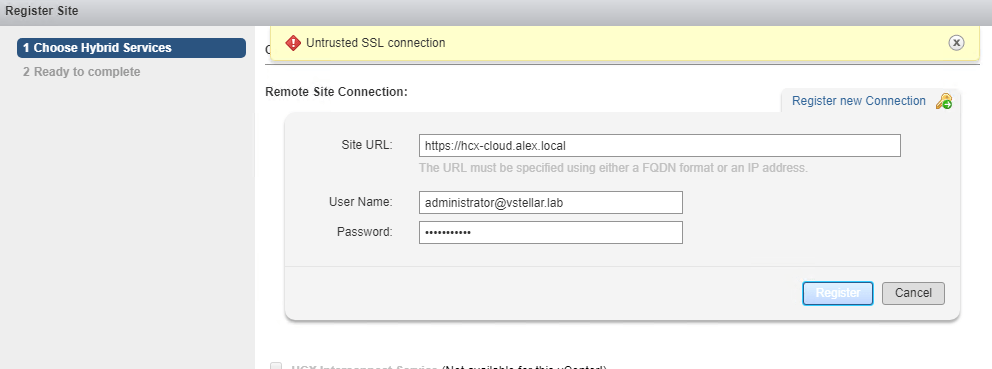
The site pairing task is straightforward and should be completed without any issues if all your configurations are correct. However, in my lab, I encountered an error, “untrusted SSL connection,” when attempting to perform site pairing.

If you are testing HCX in your lab environment, then to fix this issue, please read this article

 To pair HCX-Enterprise with HCX-Cloud, login to your on-premise vCenter UI, click on the HCX plugin, and go to the Site Pairings tab.

Click on Register new connection.

Specify the public url of your HCX cloud appliance (we configured this while deploying the HCX cloud)

Specify the vCenter administrator user name.Read the rest

HCX Site Pairing failed with Error “Untrusted SSL Connection”

In the last post of the HCX series, I demonstrated deploying and configuring the HCX Cloud appliance. The next step is to pair the HCX Enterprise appliance with the HCX Cloud appliance to start consuming HCX features. 

When I tried pairing the HCX on-prem appliance with the HCX Cloud appliance, I got an SSL connection error, and the site pairing task failed.

I quickly checked on this error with one of our developers from the hybridity team, and he helped me with the actual steps for fixing this issue. These are the high-level steps you need to perform when you face this issue.

1: Generate private and public cert files on the HCX Cloud appliance.

Read the rest

Learning HCX-Part 3-HCX Cloud Deployment & Configuration

In the last post of this series, we deployed the HCX Enterprise appliance on-premise and connected it to the vCenter server, NSX manager, and PSC. In this post, I will demonstrate the deployment of the HCX cloud appliance on the cloud side and walk through the basic configuration steps.

I don’t have a true cloud site, but I have 2 vCenter servers in 2 locations. Site A is where I deployed HCX Enterprise, and Site B is where I am deploying the HCX Cloud appliance. I am treating Site B as a cloud location.

HCX Cloud deployment is very similar to HCX Enterprise deployment and follows VMware’s standard OVF deployment procedure.

1: Once the appliance is deployed and powered on, login to the appliance by typing https://hcxcloud-fqdn:9443 and using admin as the username and password set during deployment.

2: If you have your license key handy, then activate the appliance, or you can do this later as well.Read the rest

Learning HCX-Part 2-HCX Enterprise Deployment & Configuration

In the first post of this series, we learned about the basics of HCX and discussed that HCX is available in 2 versions, i.e., HCX Enterprise (for on-prem) and HCX Cloud (for cloud providers).

In this post, we will learn how to deploy the HCX Enterprise appliance on-premises and perform initial configuration. 

The deployment of the HCX Enterprise appliance is very similar to the standard OVF deployment of any VMware product, and nothing fancy is there.

By default, the HCX ENT appliance is deployed with 12 GB of RAM, 4 vCPUs, and 60 GB of HDD.

Once the appliance boots up, login to the appliance by typing https://hcx-fqdn:9443 and using admin as the username and password set during deployment.

You need to have your HCX license key handy for activating the appliance. Your appliance should be able to connect to https://connect.hcx.vmware.com to get activated. 

You can choose to activate the appliance later.Read the rest